
Devices & Gadgets

Privacy Settings Worth Adjusting on a New Smartphone

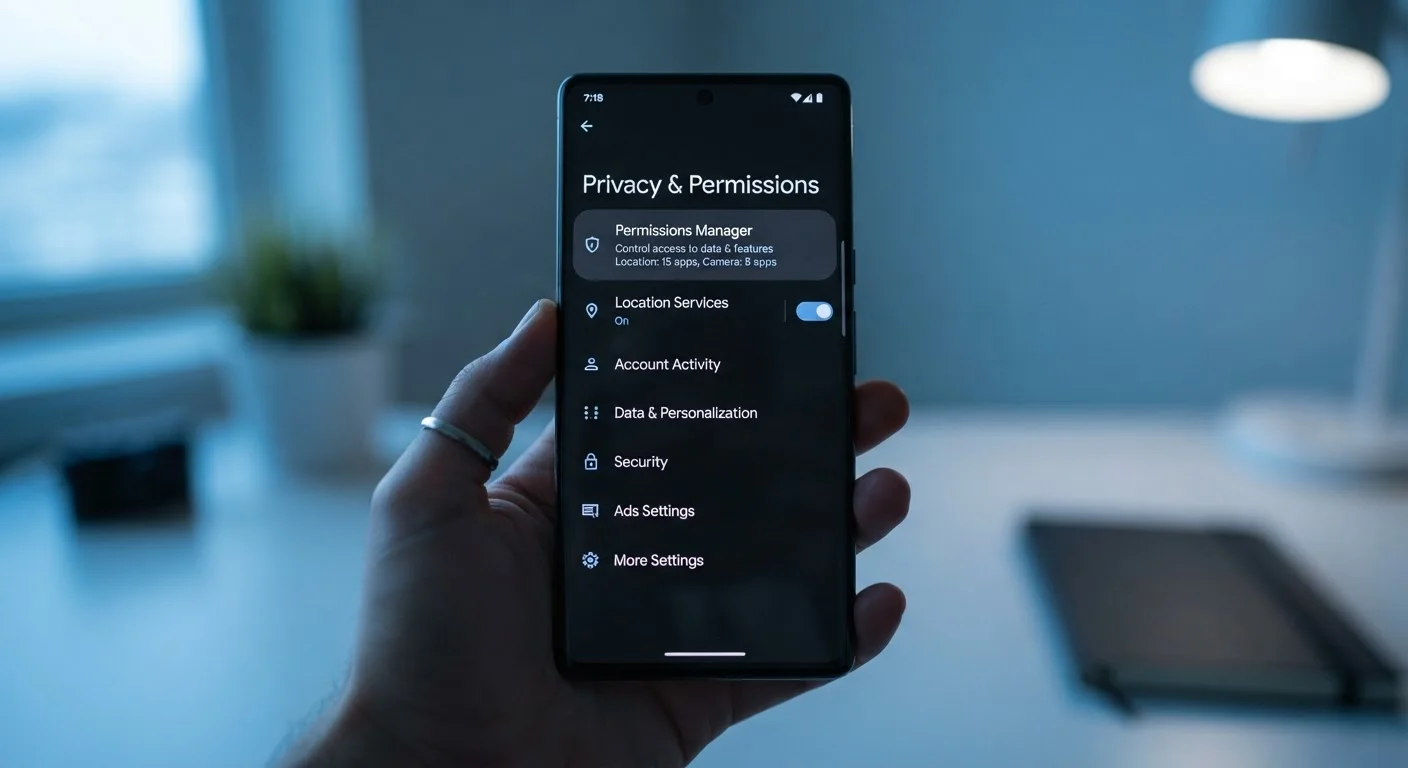
Privacy Settings Worth Adjusting on a New Smartphone

Photo: TrendingResults.net | Discover More, Trend More editorial

Location access, app permissions, ad tracking — a walkthrough of the privacy controls most people overlook after setting up a new phone.

Key Takeaways

  • Default smartphone settings often grant apps broader access to your data than necessary.
  • Location, microphone, and camera permissions are among the highest-risk defaults to review.
  • Ad tracking identifiers can be limited or reset on both Android and iOS without losing core functionality.
  • Audit app permissions periodically — not just when you first set up a new device.
  • Strong privacy habits work best alongside good security habits, including software updates and screen locks.

Why Default Settings Favor Convenience Over Privacy

When you power on a new smartphone, the out-of-the-box experience is optimized for ease — not data minimization. Manufacturers and operating system developers set permissive defaults partly because asking users to approve every permission upfront would create a frustrating setup experience. The side effect is that many apps quietly collect data — location histories, contact lists, microphone access — that they don't strictly need to function.

Understanding which defaults matter, and which are largely cosmetic, is the practical skill most setup guides skip. The settings covered here apply broadly across iOS and Android, though the exact menu paths vary by device and software version. Checking your device's own support documentation is the most reliable way to locate specific toggles.

If you're still evaluating which phone to buy, our guide to everyday device security covers the broader habits that make any device harder to exploit.

1

Set location access to 'While Using' rather than 'Always' for every app that doesn't require background location.

Granting 'Always' location access lets apps log your movements continuously, even when you're not actively using them. This data can be shared with third-party advertisers or data brokers. Limiting access to active use only dramatically reduces your location data footprint without breaking most app functionality.
Example: A navigation app legitimately needs location while in use; a retail coupon app does not need it in the background. Switching the coupon app to 'While Using' or 'Never' costs nothing in real-world utility.
2

Disable or limit ad tracking identifiers through your phone's privacy settings.

Both iOS and Android include a system-level advertising identifier — a code that lets ad networks link your behavior across apps. On iOS, you can require apps to ask permission before using this identifier; on Android, you can reset or delete it. Neither action affects core phone functions.
Example: On iOS, the App Tracking Transparency setting presents a prompt whenever an app wants to track you across other companies' apps and websites. Denying that prompt prevents the app from accessing your advertising identifier.
3

Audit microphone and camera permissions and revoke access for apps that have no plausible need.

Microphone and camera access are among the most sensitive permissions a phone can grant. Many apps request them speculatively — hoping users tap 'Allow' without thinking — even when their core function has nothing to do with audio or video capture.
Example: A flashlight or calculator app requesting microphone access is a red flag. Revoke it; the app will continue to work, and you've closed an unnecessary data channel.
4

Turn off 'Personalized Ads' or equivalent options in your Google or Apple account settings.

Beyond app-level permissions, the platform accounts tied to your phone — Google, Apple ID — have their own ad personalization settings. These are separate from device-level controls and are often overlooked. Disabling them limits how your search, purchase, and browsing history is used to build an ad profile.
Example: In your Google account settings under 'Data & Privacy,' you can turn off ad personalization across Google services. This doesn't remove ads but stops them from being targeted using your activity history.
5

Review which apps have access to your contacts, calendar, and health data, and remove access that isn't obviously necessary.

Contacts lists and calendars contain dense personal information — not just about you, but about everyone you know. Apps that upload this data to their servers can use it for purposes far beyond their stated function, and this access often goes unnoticed because it's granted once at install.
Example: A social networking app may request contacts to find friends — a reasonable use — but a game requesting the same access has no clear justification. Remove that permission in your phone's app privacy settings.
6

Enable your device's built-in screen lock using a strong PIN, password, or biometric method.

Privacy settings protect your data from remote collection, but physical access to an unlocked phone bypasses almost all of them. A strong screen lock is the baseline that makes every other privacy setting meaningful, particularly if a device is lost or stolen.
Example: A six-digit PIN is significantly harder to guess or brute-force than a four-digit code. Biometrics like fingerprint or face unlock add a convenient second layer without replacing the PIN fallback.

The Settings That Have the Most Impact

Not all privacy settings carry equal weight. Some — like toggling off a rarely-used analytics sharing option — have minimal practical effect. Others, like location access and ad tracking, have measurable implications for how your data is used and shared across the advertising ecosystem.

89%

Apps requesting at least one sensitive permission

Research from mobile security analysts has consistently found that the large majority of popular apps request access to at least one sensitive data category — location, contacts, microphone, or camera.

45%

Users who review app permissions after install

Surveys on smartphone usage habits suggest fewer than half of users revisit app permissions after the initial install, meaning granted access often persists long after it's needed.

Prioritizing a handful of high-leverage controls is more effective than trying to toggle every option. After those are locked down, software updates play a supporting role — patching the vulnerabilities that settings alone can't close. See our breakdown of what software updates actually do to understand why staying current matters beyond new features.

Quick Wins You Can Act on Today

These actions take under ten minutes combined and address the most commonly overlooked exposures on a new device. They don't require technical expertise — just a willingness to open settings and make deliberate choices rather than accepting defaults.

high Open your phone's Privacy or App Permissions settings right now and look for any app with 'Always On' location access — switch all non-essential ones to 'While Using' or off.
high Find the ad tracking or advertising identifier setting in your phone's Privacy menu and disable personalized tracking or reset the identifier.
medium Check which apps have microphone access and revoke it for any app whose primary function doesn't involve audio.
medium Log into your Google or Apple account online, navigate to privacy or data settings, and turn off ad personalization.
high Set your screen lock to a six-digit or longer PIN if you're currently using a four-digit code or no lock at all.

Once you've worked through these basics, revisit your app permissions list every few months. Apps frequently request additional access after updates, and permissions you granted at install may no longer match what you'd approve today. Pair these habits with the carrier plan evaluation checklist when you're setting up a new line — your privacy posture starts before you even turn the device on.

Privacy Settings Vary by Device and OS Version

The specific menu names and toggle locations described in this article reflect general patterns across iOS and Android — but exact paths differ by manufacturer, carrier customization, and software version. If you can't locate a setting, searching your device's built-in help app or the manufacturer's support site by the setting name is the most reliable approach. Carrier-sold devices sometimes have additional preinstalled apps with their own permissions worth reviewing. For more on how carrier-sold phones differ from unlocked models, see our overview of carrier phone trade-offs.

Tech & Telecom Editorial Team

TrendingResults.net | Discover More, Trend More

Tech & Telecom Editorial Team is the collective byline for our editorial team and contributor network. Articles published under this byline or an editorial pen name are researched, written, and reviewed according to our editorial standards for clarity, consistency, and independence before publication.

Phone PlansHome InternetDevices & Gadgets
View author profile

The content on this site is provided for informational purposes only and should not be considered a substitute for professional advice. While we strive to provide accurate and up-to-date information, we make no guarantees regarding its completeness or accuracy. Always consult a qualified professional for advice specific to your circumstances before making any decisions.